
Parent workspace · 3 min read
Save your first dated record
Write what happened, connect a supporting file, and check that your record saved.
Updated · Website and iOS workspace
Before you start
Sign in and check the case name. Use Add records in the sidebar or phone navigation. Other sections are under More tools on a computer or More on a phone. Labels may differ if you personalized them.
Follow these steps
Open Add records → Event
Check the date the event happened, then start with What happened?. Add a short title or time if useful. Open Templates and optional details for the event type, tags, and templates in either Focus view or Full view. The separate Note option also creates a written record.
Describe what you observed
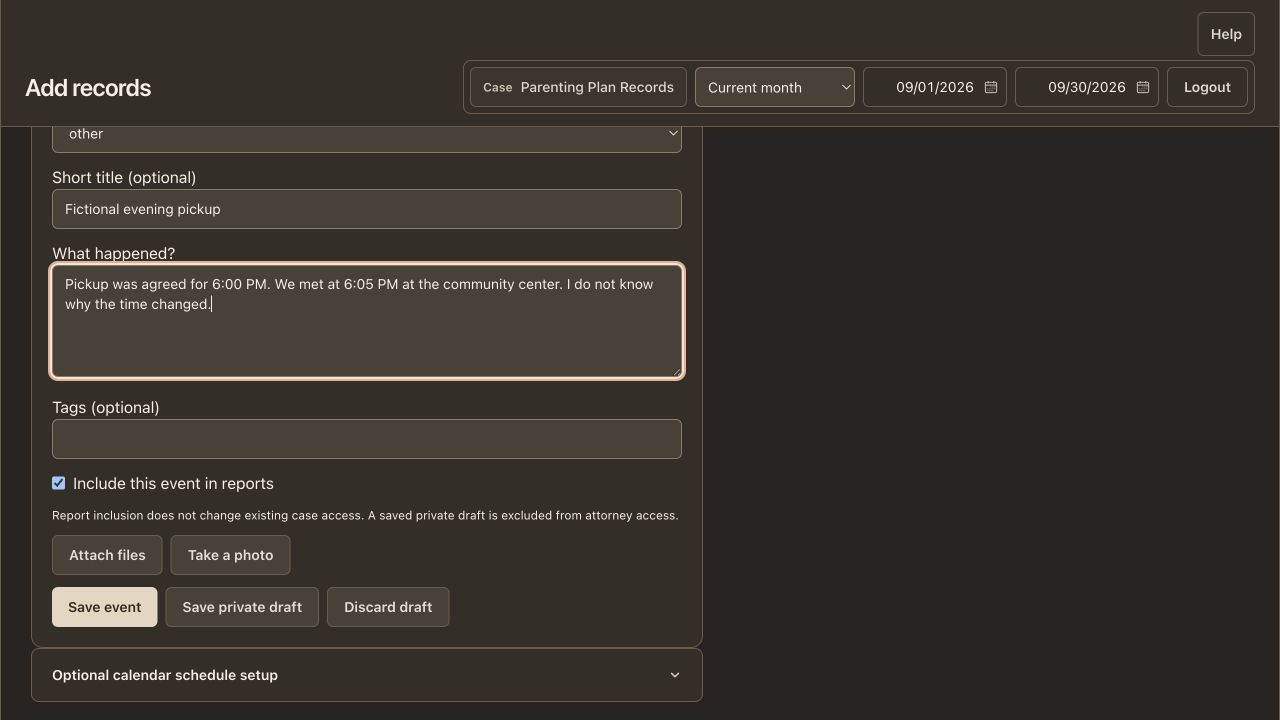
Use What happened? for the details. Separate something you saw from something another person told you. State what is unknown instead of filling in a missing detail. Optional comma-separated tags help you find related records.
Connect supporting material
Use Attach files or Take a photo if you have a relevant source. One event can have up to eight attachments totaling no more than 40 MB; each file must also pass validation. Check the selected filenames before saving.
Choose a saved record or a private draft
Review Include this event in reports, then choose Save event when it is ready. If you are still writing, Save private draft retains the text for later and excludes that draft from attorney access. Draft attachments remain on the open page until you save the event. Report exclusion on a saved record does not hide it from an existing case-access grant.
Wait for confirmation and find the entry
Keep the page open until Event saved appears. In Timeline or Notes & events, search for a word from the entry and set Event date from/through if needed. Clear search, dates and type filters when checking for missing records. Event date describes when it happened; Recorded on shows when you saved it. In Notes & events, Supporting originals lets you link a saved original to this event, including a file used by another event.
Check that it worked
Your dated entry appears once in the correct case, and its supporting files are listed in Files & evidence. A private draft instead returns to the Event form when you resume it.
An example to follow
Fictional example: September 12, 6:05 PM. Title: Evening pickup. Note: Pickup was agreed for 6:00 PM in the attached message. We met at 6:05 PM at the community center. I do not know why the time changed.
If you get stuck
I cannot find the record.
Confirm the case and date range, then clear the Timeline type filter. A saved private draft is in the Event form, not the ordinary timeline. An unsaved draft has not become a case record.
Saving did not finish.
Keep the page open and read the error. Use Retry save for that attempt when offered. Avoid creating another copy while the original attempt is unfinished; check the saved entries before starting over.
Will this change my schedule or send a message?
Saving an event creates a dated record. It does not change a recurring schedule or send an attorney message. Those actions have separate controls.
Watch the walkthrough
Videos include captions and written transcripts.
Related guides
Still need help? Contact support with the screen name and error wording. Leave out private case details. These instructions explain the product and do not provide legal advice.