
Parent workspace · 4 min read
Respond to an attorney's records request
Keep a reply, the requested records, and checklist updates together in one topic.
Updated · Website and iOS workspace
Before you start
The intended legal professional must have accepted case access. Open Attorney access → Requests & messages and select that account. Review the separate sharing choice before using Enable conversations.
Follow these steps
Open the topic that needs your reply
Read the request, its date range, and any requested-by date. Requested dates are planning aids, not court deadlines. Use a separate New topic for an unrelated question.
Write a focused reply
Use Your message to say what you have supplied and what is still missing or unclear. A saved draft is not a sent message. Keep the text until the interface confirms it was sent.
Attach the saved records
Expand Attach saved records, search, and select up to eight relevant items. These are copies of saved text or file details. Original files are separately downloadable while available. Save a new file or note to your case before trying to select it here.
Update requested items
If the topic has a Requested records checklist, set a supplied item's Status to Supplied by client. The change is saved with your message. This does not mark the item Reviewed by attorney.
Send and confirm
Choose Send reply and wait for Saved to this conversation. Reopen the topic to review your sent text, selected copies, and checklist state. Editing a case record later does not rewrite a copy you already sent.
Choose how to follow up
Replies appear in the app. Under Your email notifications, optional emails start at Never; each person chooses their own preference. Push notifications are unavailable. Use your usual direct contact for urgent matters. Download conversation saves the history separately from case reports.
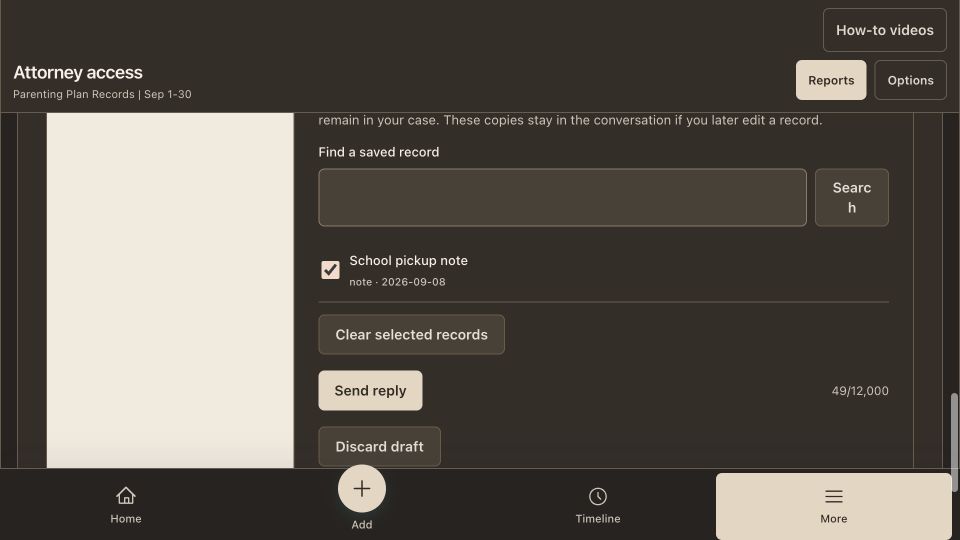
Check that it worked
Your reply and selected copies appear in the topic, with the requested item shown as supplied when you selected that status. The conversation can show Waiting for attorney until another action changes it.
An example to follow
Fictional example: Here are my September pickup note and the original scheduling message. I have supplied those two items. I have not found the receipt yet. Select the two saved records and update only the checklist items you actually supplied.
If you get stuck
There is no Send reply control.
Check whether conversations are paused, the topic is closed, or case access has ended. A closed topic can be reopened while access remains active. Copy an unsent draft before changing topics or discarding it.
A record is missing from Attach saved records.
Check that it is saved in the selected case. Narrow the search and choose Search; long lists show a limited set of matches. A private draft is not a saved case record available to attach.
My checklist update did not appear.
Checklist changes are submitted with your message. Add the reply text, choose Send reply, and wait for confirmation. Supplied by client is different from an attorney's review.
Watch the walkthrough
Videos include captions and written transcripts.
Related guides
Still need help? Contact support with the screen name and error wording. Leave out private case details. These instructions explain the product and do not provide legal advice.