
Parent workspace · 4 min read
Give your legal team access to a case
Invite the intended person, deliver the private link, and understand what they can access.
Updated · Website and iOS workspace
Before you start
Confirm the person's individual work email and the case you intend to share. An invited person can download copies; ending access cannot recall copies already downloaded.
Follow these steps
Open Attorney access
Check Profile the attorney will see. Review your client and case labels and use Review profile if they need correction. These labels help the recipient distinguish your matter from other clients.
Review and create the invitation
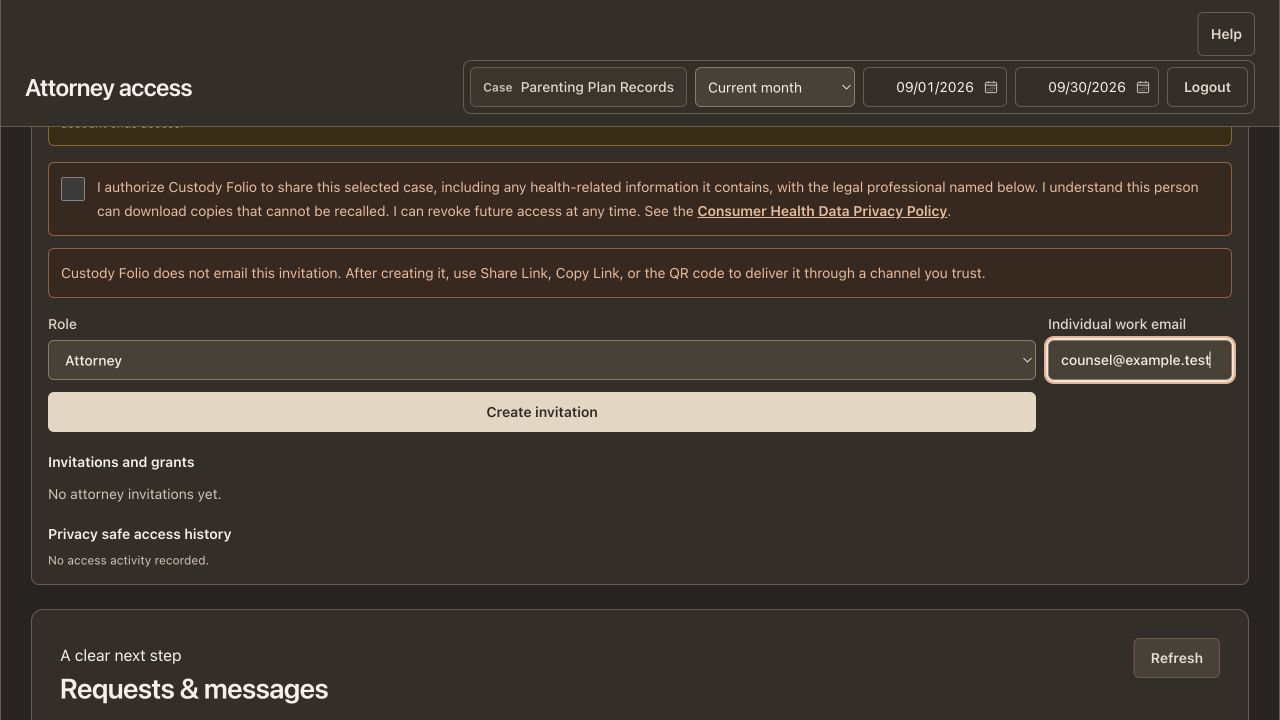
Read the case-sharing authorization, choose the recipient's role, and enter their Individual work email. Choose Create invitation only when the recipient, case, and access described match your intent.
Deliver the private link yourself
Use Share Link, Copy Link, or the QR code to provide the invitation through a channel you trust. Custody Folio does not email this invitation for you. Tell the recipient to use the exact invited email address.
Confirm acceptance
The recipient opens the link and verifies the invited mailbox with an email code. Check Invitations and grants for accepted access. Their case-record view is read-only, with reports and original downloads available.
Prepare a meeting message
In Meeting brief, choose up to eight saved references and prepare the message. In Attorney access, choose the intended recipient and select Review as a new message. Review the message and each selected record copy, remove anything unintended, then use Send topic when ready. Preparing the brief does not send it or grant access.
Choose conversations separately
Requests & messages has a separate sharing choice for each accepted account. Enable conversations there if you want to exchange topics, replies, and selected record copies. The case invitation alone does not enable these conversations.
Review or end future access
Use Attorney access to inspect the grant and access history. Revoke access ends future access to the case. Pause conversations affects that person's conversation history access while leaving their separate case-record grant in place.
Check that it worked
The intended account appears as accepted, and the recipient can identify the right client and case. Sharing access does not establish legal representation or attorney-client privilege.
An example to follow
Fictional example: invite [email protected] as Attorney for the case labeled Parenting Plan Records, send the generated private link directly, and confirm acceptance before enabling a separate records request conversation.
If you get stuck
My attorney did not receive an invitation email.
Creating the invitation does not send an email. Copy or share the generated private link yourself. The sign-in code is a separate email sent during mailbox verification.
The recipient used a different email.
The recipient must verify the exact invited address. Forwarding a link does not transfer its access to another email. Recheck the intended individual address before creating another invitation.
Can I share only the records included in reports?
The case-access grant is broader than a particular report selection. Excluding a saved record from a report does not hide it from existing case access. Review the authorization before sharing the case.
Watch the walkthrough
Videos include captions and written transcripts.
Related guides
Still need help? Contact support with the screen name and error wording. Leave out private case details. These instructions explain the product and do not provide legal advice.