
Legal-team workspace · 4 min read
Review a shared matter and export selected records
For legal teams: confirm the matter, select records, and download reports and originals.
Updated · Website and iOS workspace
Before you start
The client must invite your exact individual email and provide the private invitation link. Verify that mailbox to accept. For later visits, use Attorney sign in with the same address.
Follow these steps
Confirm the client and matter
Open the intended item in Shared With Me, or check the matter already open. Confirm the client profile and case name. Use Client profile and case or All matters to switch when available.
Set the review range and selection
Use the From and To dates and the available selection controls. Select all and Clear all affect your export selection, not the client's records. Check the selection again before exporting.
Review the records and sources
Use Timeline, Calendar, Parenting time, Notes & events, Expenses, and Child support as needed. Compare client-entered amounts and descriptions with their sources. Case records are read-only here; ask the client to correct their source entry if needed.
Preview and export
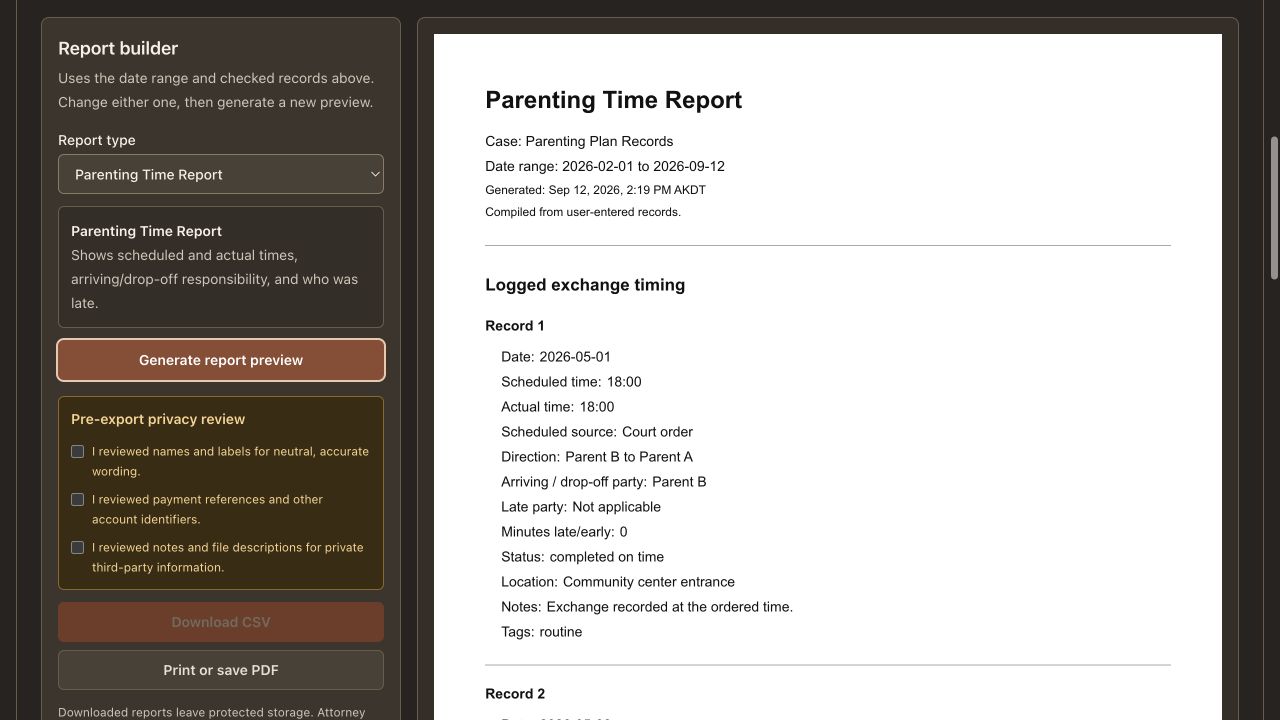
Open Reports, choose the appropriate type, and generate the preview. Complete the displayed review acknowledgements, then download the available PDF or CSV. Open the downloaded file and check that the intended records and date range are present.
Download originals separately
In Files & evidence, use Download beside the source file. Audio originals can be opened in a compatible player. A report's file index does not replace the original documents, images, or recordings.
Finish the session deliberately
Use Sign out on a shared device. Sign out ends the session; Leave matter gives up access to that case. Read its confirmation before leaving. Ending access cannot recall downloads already retained.
Check that it worked
The downloaded export contains your chosen records, and any needed originals are saved separately. Your review selection has not edited the client's case data.
An example to follow
Fictional example: review a client's September pickup records, clear the broad export selection, select the relevant note and file, and inspect the resulting export. Download the scheduling message original separately for comparison.
If you get stuck
The expected matter is missing.
Check the signed-in email, accepted invitation, and client/case labels. Access may have ended. Ask the client to review the grant rather than assuming another matter is the correct one.
A file no longer downloads.
Refresh the matter and ask the client about that source. The source or access may no longer be available. A saved conversation copy is not proof that the original can still be downloaded.
I cannot edit a client's record.
That is the intended read-only case view. Use a separate request or your normal contact channel to ask the client for a correction. Report selections do not change the saved source.
Watch the walkthrough
- Attorney invitation and sign-in · 0:47
- Find and switch shared matters · 0:43
- Attorney review of records and finances · 0:48
- Attorney files, audio, and originals · 0:46
- Build and export an attorney report · 0:47
Videos include captions and written transcripts.
Related guides
Still need help? Contact support with the screen name and error wording. Leave out private case details. These instructions explain the product and do not provide legal advice.