
Parent workspace · 3 min read
Record, save, and find audio
Use the recorder, keep an unfinished recording safe, and find the saved file.
Updated · Website and iOS workspace
Before you start
Only record when you have permission to do so. Check the case before starting, and keep the app or browser page open through saving. The recorder allows up to ten minutes per recording.
Follow these steps
Open Add records → Record audio
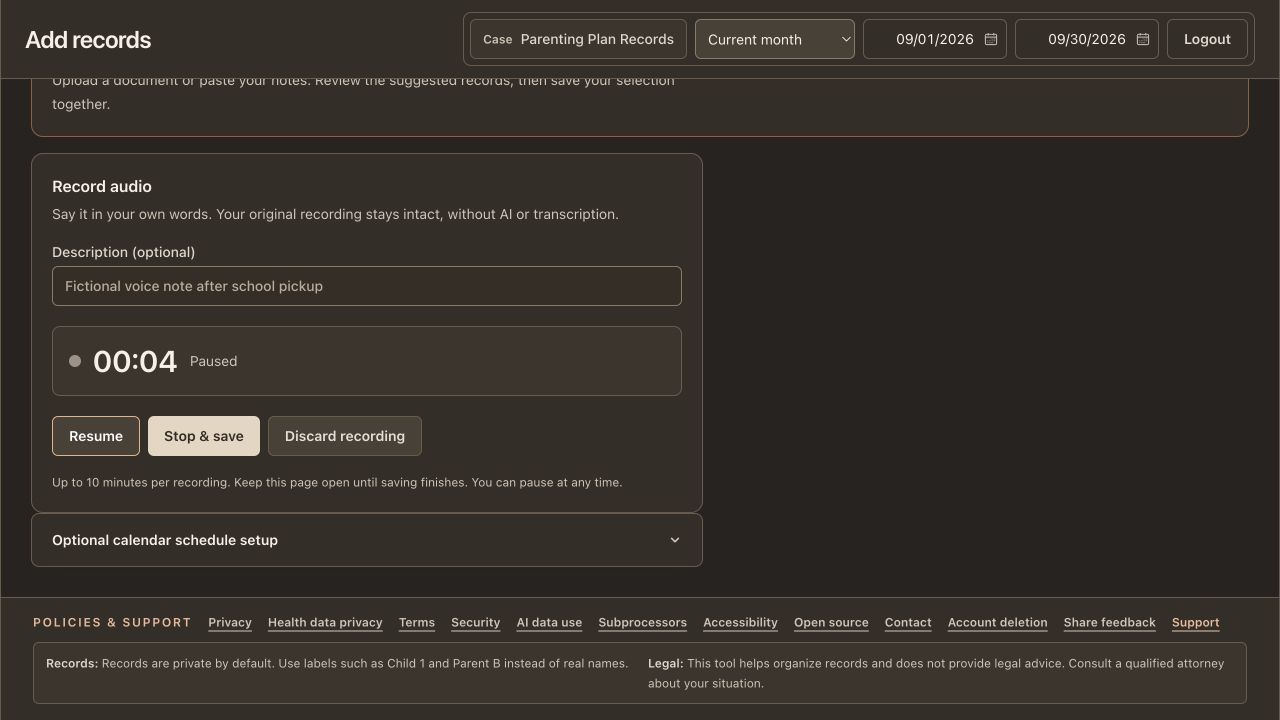
Add an optional description before starting. Use a description that helps you identify the recording without treating it as a verified account of an event.
Start recording
Select Start recording and allow microphone access if you choose to proceed. Wait until the interface says Recording and the duration advances. A permission prompt or a Waiting status is not a recording confirmation.
Pause or finish
Use Pause and Resume as needed. In a cloud account, Stop & save ends the recording and starts saving it. Keep the page open until Saved to Files & evidence appears.
Keep a copy if saving fails
If Retry save appears, keep the unfinished recording open and retry. Download recording can preserve a local copy. Confirm that download before using Discard recording or closing the page.
Find and play the saved original
Open Files & evidence. Find the recording by date and description and use its audio player or Download. You can also add an existing supported recording through Add records → File → Audio file. The recorder stores audio without transcribing it.
Check that it worked
The interface confirms the recording saved, and the audio appears in Files & evidence. Play the saved file to check that it contains the sound you expected.
An example to follow
Fictional example: record a short personal reminder describing which documents you plan to organize before a meeting. Label it Meeting preparation reminder. Add a dated written note separately if you want a text entry in your report.
If you get stuck
Microphone permission was denied.
Review microphone access in the device or browser settings and return to the recorder. If you cannot record there, upload an existing supported audio file. Do not assume the recorder is running until its status confirms it.
The installed iOS app says recording is unavailable.
Follow the displayed message: update the app, upload an existing recording, or open custodyfolio.com in Safari. An older installed build may not support in-app microphone recording.
The recording is silent or stopped early.
Check the input and permission, and try a brief permitted test before a longer recording. The recorder can stop at its time or size limit. Keep and review the existing file before deciding to discard it.
Watch the walkthrough
Videos include captions and written transcripts.
Related guides
Still need help? Contact support with the screen name and error wording. Leave out private case details. These instructions explain the product and do not provide legal advice.