
Parent workspace · 5 min read
Make a readable PDF from photos or screenshots
Check image quality, arrange selected pages, and preserve the originals and surrounding context.
Updated · Website and iOS workspace
Before you start
Have the original documents or complete message source available. Build a PDF uses images selected from your device. An upload success message does not establish that every word is readable; check the result yourself.
Follow these steps
Capture a readable source
For a paper document, use even light, keep all page edges visible and hold the camera steady. Review small text and dates before saving; retake a blurry new photo while keeping any original you need. For messages, retain sender details, dates and enough surrounding conversation to understand the excerpt. Keep the complete source separately.
Open Build a PDF
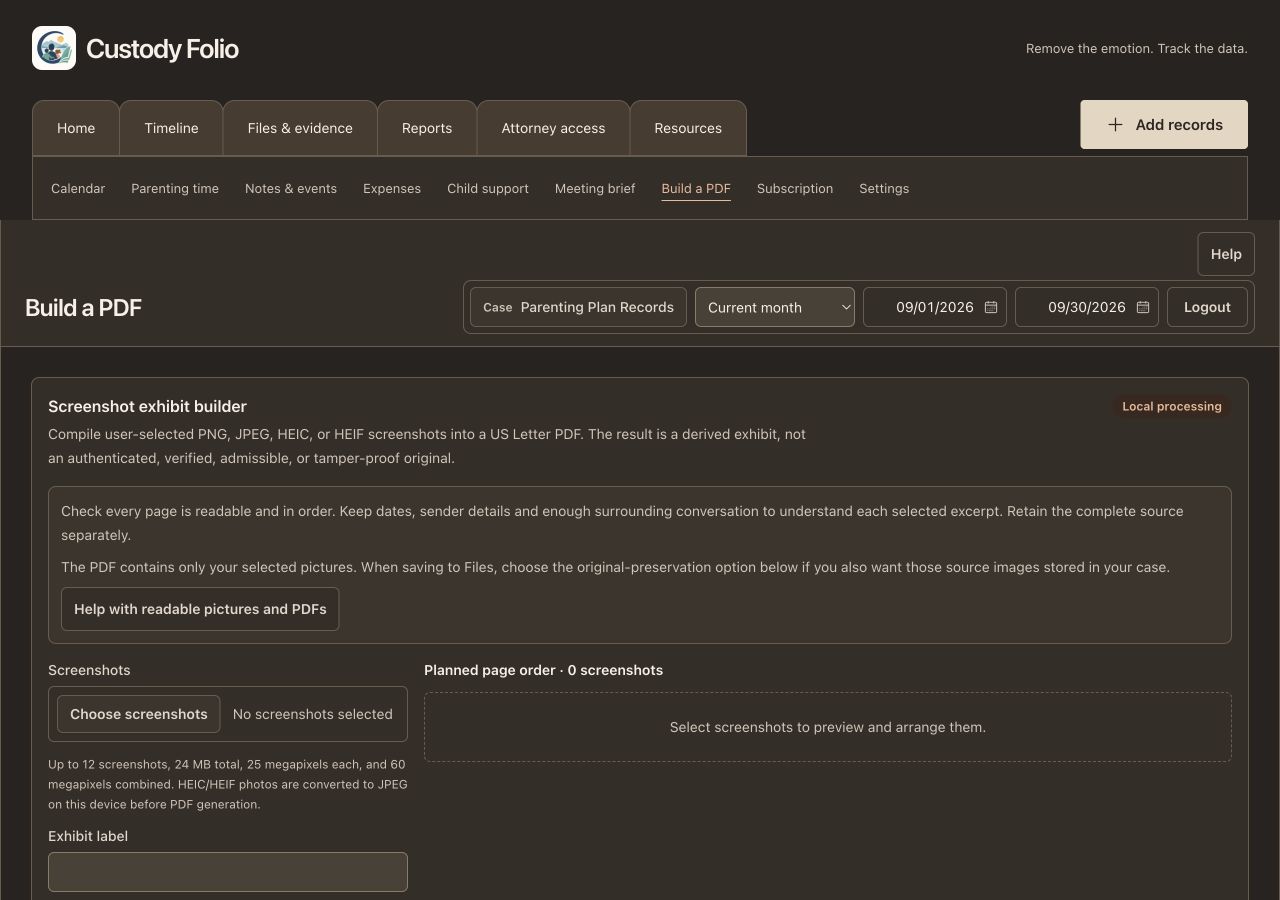
Use Build a PDF from pictures beside the photo or file controls, or find Build a PDF under More on a phone. Save or clear a current file selection before switching. Choose screenshots in the builder to select PNG, JPEG, HEIC or HEIF images from your device.
Check and arrange the pages
Review Planned page order. Use Move up, Move down, or Remove to arrange the selected images. The builder accepts up to 12 images totaling 24 MB, with additional image-resolution limits shown on screen. Divide a larger selection into clearly labeled parts and keep all originals; a selected part is not the complete conversation.
Add a neutral label and page numbers
Enter an Exhibit label, Neutral title, date range and short description if useful. Enable the neutral cover page and Page X of Y numbering when appropriate. Describe a selection as an excerpt when that is what it contains.
Generate and open the downloaded PDF
Choose Generate PDF, then Download or share PDF. Open the downloaded file and inspect every page at a readable zoom or on paper. Confirm the order, small text, dates and context. If you change the selection or title, generate a fresh PDF and check it again.
Save the PDF and retain originals
In a cloud account, choose the option to preserve every selected screenshot as a separate original evidence item when you want those originals saved in the case too. Then use Save PDF to Files and wait for confirmation. Open saved PDF in Files to check it. Downloading the PDF alone does not save it or its originals into the case.
Check that it worked
The downloaded PDF is readable, has the intended order and clearly identifies its scope. You have retained the original sources. If you chose to save to the case, Files & evidence contains the PDF and any originals you elected to preserve.
An example to follow
Fictional example: select three screenshots from a school scheduling conversation. Include the sender and dates, arrange them chronologically, and label the PDF School scheduling — selected excerpt, September 10–12. Keep the complete conversation separately. Compare each exported page with its source before giving it to your attorney.
If you get stuck
The picture is blurry or text is too small.
A PDF cannot restore text that was not captured clearly. Retake a paper-document photo or obtain a clearer original when possible. Inspect the actual downloaded PDF; avoid changing the words or presenting an altered copy as an original.
The PDF downloads but will not save to Files.
The saved-file limit is 10 MB. Local sharing has a separate 25 MB limit. Use smaller, clearly labeled selections within the displayed limits, retain the originals, and check every part. Do not treat a local download as a confirmed case save.
Are my source images automatically stored with the PDF?
Only if you select the original-preservation option when saving to Files. HEIC/HEIF images are converted locally for the derived PDF; original preservation retains the selected source files. Keep complete conversations and other context separately when they extend beyond your selected pictures.
Watch the walkthrough
Videos include captions and written transcripts.
Related guides
Still need help? Contact support with the screen name and error wording. Leave out private case details. These instructions explain the product and do not provide legal advice.