
Legal-team workspace · 4 min read
Request records and record a version-specific review
For legal teams: create a checklist, review supplied copies, and track later replies.
Updated · Website and iOS workspace
Before you start
Confirm the client and matter. The client must separately enable conversations for your invited account. Conversation history and record copies are separate from court reports.
Follow these steps
Start one focused topic
Open Requests & messages → New topic. Enter a Subject, choose Question or Record request, and describe the information and date range you need. An optional Requested by date is a planning aid, not a court deadline.
Add requested items
Use Add requested item for each distinct item, with optional From and Through dates and a Status. Add your message and choose Send topic. Checklist changes are saved with a message; they are not submitted just by changing a field.
Read the response and supplied copies
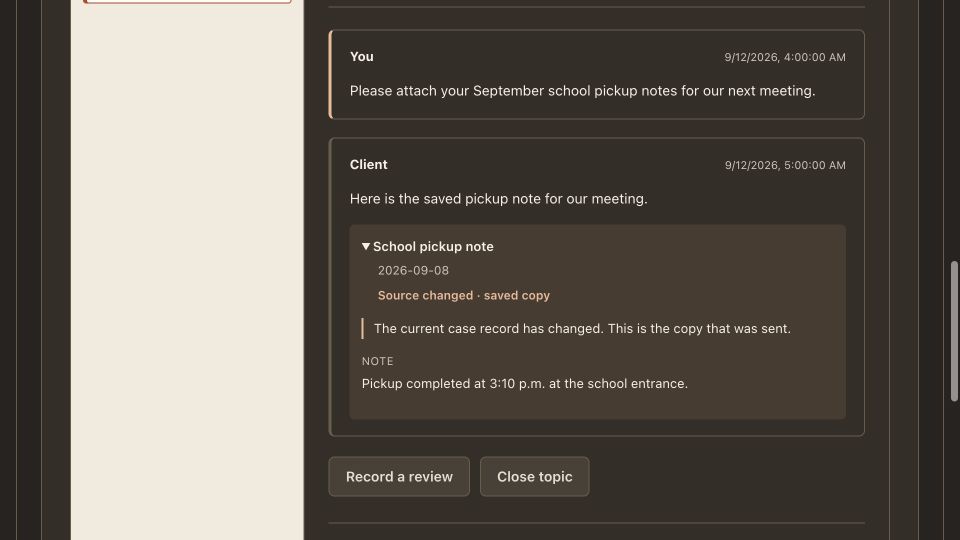
Open the client's reply and expand its attached records. Supplied by client is different from Reviewed by attorney. Source changed or Source unavailable means the shown copy is historical; compare the current original when available.
Clarify or update the checklist
Reply in the same topic about anything still needed and update each item's status as appropriate. Use separate topics for unrelated requests. Case-record editing remains with the client.
Record the attorney's review
An invited Attorney can choose Record a review, describe what was reviewed and for what purpose, and select Mark this version reviewed. Paralegal and legal-staff roles cannot use this attorney review action or newly mark an item Reviewed by attorney. A review records the displayed conversation version; it does not certify the underlying facts.
Check new versions and close when complete
A later reply creates a new version requiring fresh consideration. Close topic when finished, or Reopen topic to continue. Download conversation retains the text history and version information. Optional emails are configured per account under Your email notifications; use your normal direct channel for urgency.
Check that it worked
The topic contains the request, individual checklist statuses, replies, and any attorney review's version and purpose. Later replies do not inherit a previous version's reviewed status.
An example to follow
Fictional example: request September pickup notes and the scheduling message as two checklist items. The client supplies the note but still lacks the message. Keep the second item missing or needing clarification rather than treating the whole request as complete.
If you get stuck
The client has not enabled conversations.
Ask the client to review the separate choice in Attorney access → Requests & messages. You cannot enable their consent from the legal-team portal. Existing read-only case access is separate.
My review is no longer current.
Refresh and read the later conversation version. A new reply should not be covered by an earlier review. If you are an invited Attorney, record a new review only after reviewing that version.
An attachment says Source changed.
The message retains the copy originally sent. Later edits to the case record do not rewrite it. Compare the original or ask for a new copy if needed; do not assume the old copy is current.
Watch the walkthrough
Videos include captions and written transcripts.
Related guides
Still need help? Contact support with the screen name and error wording. Leave out private case details. These instructions explain the product and do not provide legal advice.